Download the matching build
After checkout, keep the activation key and download the Limitcode Pro package matched to your Sublime Text build (current or next-generation plugin host).
Everything needed to run Limitcode Pro in Sublime Text: setup, Command Palette reference, settings, keyboard shortcuts, and answers to common questions.
After checkout, keep the activation key and download the Limitcode Pro package matched to your Sublime Text build (current or next-generation plugin host).
Copy the package into Sublime Text's Installed Packages folder, restart Sublime Text, then activate this device from the Command Palette.
Add an API key, sign in with a supported account, reuse an existing CLI login, or point Limitcode at a local endpoint. Then open Limitcode Chat.
Limitcode:.Open the Command Palette with Ctrl+Shift+P and type any command prefix.
Limitcode: Open ChatLimitcode: New ChatLimitcode: Chat HistoryLimitcode: Rename SessionLimitcode: Delete SessionLimitcode: Clear ChatLimitcode: Send to AgentLimitcode: Change ProviderLimitcode: Change ModelLimitcode: Set Reasoning EffortLimitcode: Setup Provider API KeyLimitcode: Toggle PermissionsLimitcode: Show InstructionsLimitcode: Show Cost StatisticsLimitcode: Login with GitHub Copilot (OAuth)Limitcode: Login with Codex (OAuth)Limitcode: Login with Google Antigravity (OAuth)Limitcode: Logout OAuthLimitcode: Activate LicenseLimitcode: Show License StatusLimitcode: Deactivate This Device
Open Preferences → Package Settings → Limitcode → Settings.
Provider and model use default_provider and default_model.
{
  "default_provider": "openrouter",
  "default_model": "anthropic/claude-sonnet-4-20250514",
  "api_keys": {
    "openrouter": "sk-..."
  },
  "temperature": 0.7,
  "max_tokens": 4096,
  "max_iterations": 25,
  "permission": {
    "tool": {
      "read_file": "allow",
      "list_files": "allow",
      "search_files": "allow",
      "write_to_file": "ask",
      "edit_file": "ask",
      "apply_diff": "ask",
      "execute_command": "ask"
    },
    "file": {
      "allow": ["src/**", "lib/**", "app/**", "*.py", "*.js", "*.ts", "*.md"],
      "deny": ["**/*.lock", ".env", "**/node_modules/**", "**/.git/**", "**/__pycache__/**"]
    }
  }
}
Reads and searches can stay frictionless (allow)
while mutating tools ask by default (ask), or are
denied. Use Limitcode: Toggle Permissions or the
trust commands per agent.
Glob patterns decide which files the agent can touch. Deny lists protect lockfiles, environment files, dependencies, and version-control folders by default in the example above.
Direct APIs (OpenAI, Anthropic, Gemini, OpenRouter, Mistral AI, DeepSeek, and compatible gateways), account sign-in (GitHub Copilot, OpenAI Codex, Google Antigravity), existing CLI sessions, and local OpenAI-compatible runtimes.
Account routes depend on provider-controlled behavior. Google Antigravity in particular carries elevated account risk — prefer a secondary Google account and use it at your own responsibility.
Full providers guide →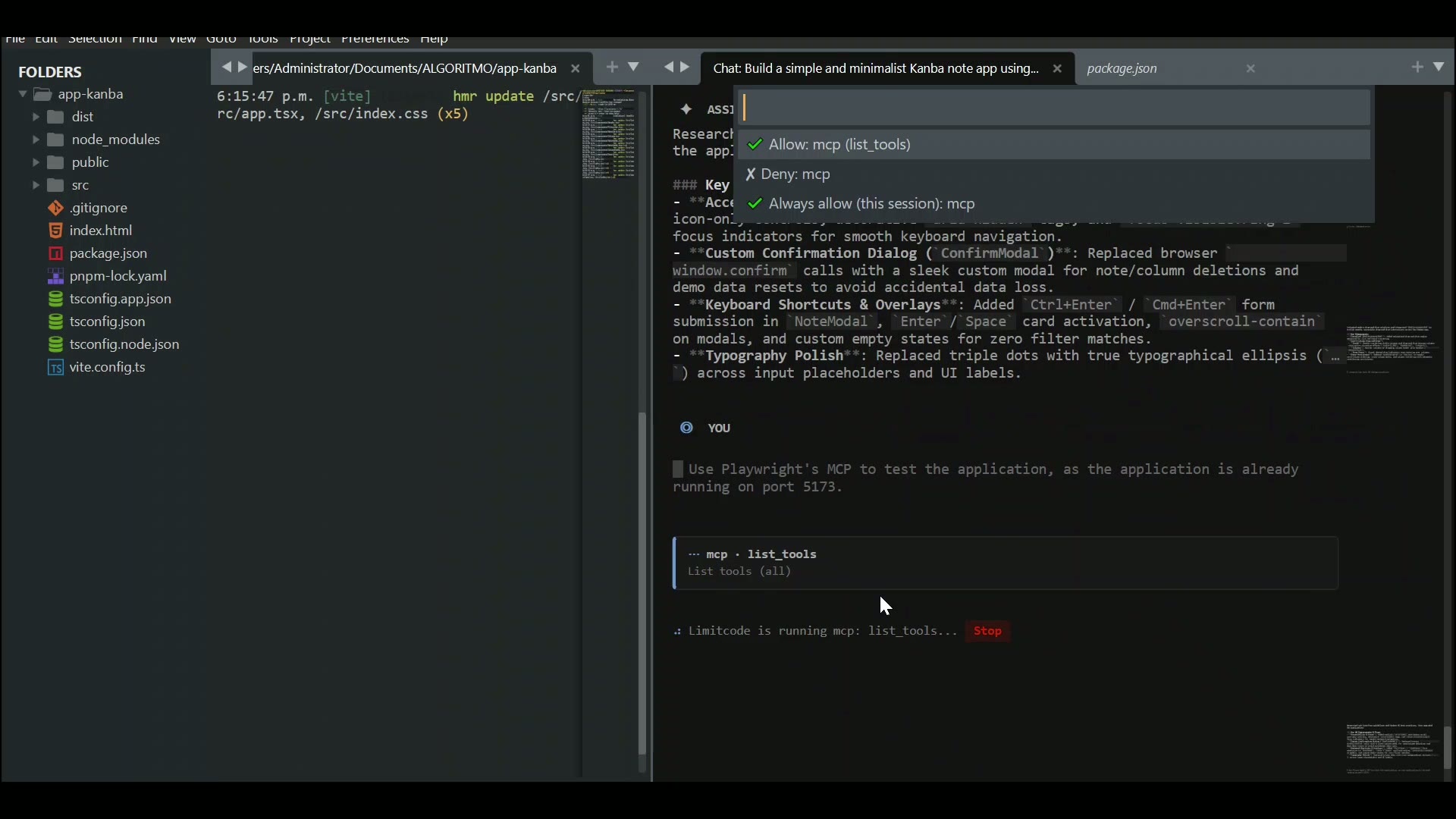
Limitcode Pro driving a Playwright MCP server to run real tests. 0:53
No. Limitcode runs inside Sublime Text. API-key providers work directly from the plugin; account, CLI, and local integrations use their own optional setup.
API keys and OAuth tokens are stored in Sublime Text settings, not an operating-system keychain. Review the provider's terms before connecting a work or primary personal account.
Separate downloads are provided for the current and the next-generation Sublime Text plugin hosts, so you install the package matched to your build.
Logout removes the stored credentials from local settings. It does not revoke the token on the provider side — revoke access in the provider's own security settings if you want it invalidated server-side.
Yes. Paste a screenshot or image into the chat (Ctrl+V / Cmd+V on Windows, macOS, and Linux) and image-capable models can see and reason about it, for example to inspect UI bugs, diagrams, or design mockups.
Yes. Web search and URL fetching are built-in tools that ask for permission by default. The search backend is configurable in Limitcode settings.
Yes. Skills load specialized instructions on demand, and any MCP server you configure becomes callable as a tool — both under the same permission rules as the rest of the agent.
Yes. Ollama, LM Studio, LiteLLM, and custom OpenAI-compatible endpoints are supported. Tool calling depends on the endpoint and model implementation.
Yes. Codex, Copilot, and Antigravity routes depend on provider-controlled accounts and service behavior. Availability, quotas, and compatibility can change independently of Limitcode. See the Providers page for account-risk notes.
Installation help and questions about your license or a specific provider.
hola@jawuil.dev →